
How to Answer Etsy Messages Faster With Saved Replies (Templates)

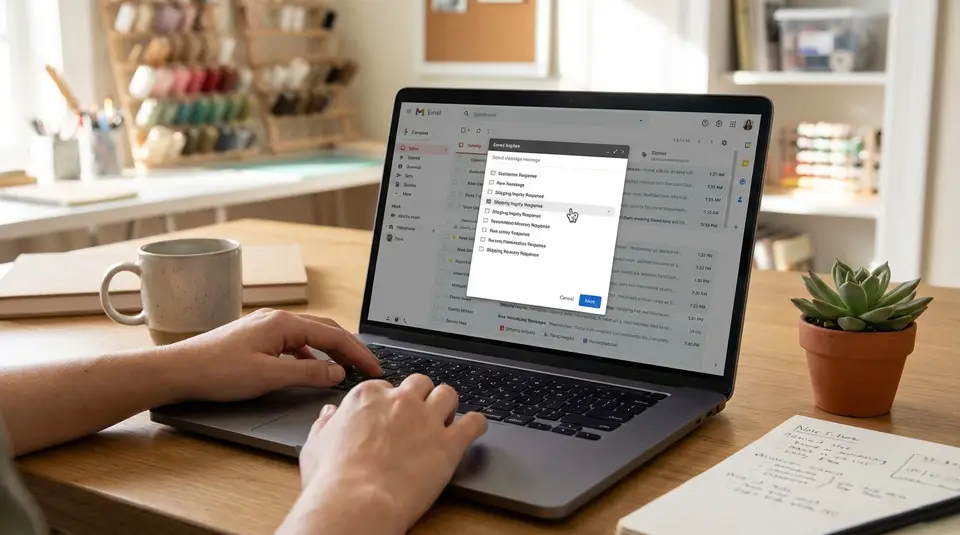
Saved replies are prewritten message templates you can drop into Etsy conversations in a couple clicks, so buyers get a clear answer without you retyping the same details all day. They matter because faster, consistent responses reduce confusion, prevent order issues, and make your shop feel reliably run even during busy seasons. The best templates cover your repeat topics like shipping timelines, customization questions, sizing help, and problem-solving steps, then leave a small spot to personalize with the buyer’s name, order info, or next action. The surprising part is how often “quick” replies backfire simply because a placeholder or policy detail gets forgotten.
Etsy Messages: where to find buyer conversations and reply fast
Inbox vs order messages and notifications
On Etsy, most buyer conversations live in your Messages inbox, not inside individual listings. If you make it a habit to check Messages first, you will catch pre-purchase questions (like sizing and customization) and post-purchase issues (like address changes) in one place.
On desktop, you can get to your inbox from your Etsy account menu by choosing Messages. In the Etsy Seller app, tap Messages to see the same threads. Etsy’s own help guide on Etsy Messages is worth bookmarking if your layout looks different after an update.
A common speed problem is relying on notifications alone. Notifications are helpful, but they are not a perfect to-do list. They can be easy to swipe away or miss when you are busy. For fast response times, treat notifications as a prompt to open Messages, then clear the thread only after you have replied.
If you sell on a phone most days, turn on push notifications for the Etsy Seller app, then set a simple routine: check Messages at set times (morning, midday, end of day) and once more right after you get an order.
Sending messages from an order page
When a message is tied to a specific order, the fastest route is often the order page. On Etsy.com, go to Shop Manager and open Orders & Shipping, find the order, then use the Message button on that order to contact the buyer. In the Etsy Seller app, open Orders, select the order, and message from there.
This order-first workflow is ideal for questions that need order details, like confirming personalization, sharing a ship date, or replying with tracking context. It also reduces mistakes, because you are looking at the exact order while you type your reply.
Saved Snippets in Etsy: create and manage reply templates
Adding a new snippet and naming it well
Etsy’s built-in version of “saved snippets” is called Quick replies. It is a library of prewritten messages you can insert into buyer conversations, so you do not have to retype the same answers again and again.
To create one, open any message thread and go to the quick replies list, then choose the option to manage or add a new quick reply. Etsy walks through the exact steps in its guide to quick replies.
Naming matters more than most sellers expect. A good title lets you find the right template fast, even on mobile. Use a simple, scannable format:
- Shipping: Where’s my order?
- Customization: Confirm details
- Digital: Download help
- Returns: Eligibility and next steps
Keep the first word as the category (“Shipping,” “Custom,” “Sizing,” “Returns”), then the situation. This makes your list sort neatly and reduces mis-sends.
When you write the template, include placeholders you must fill in each time, like processing time, tracking link, or the buyer’s name. If you sell a mix of items, note when the reply is for “digital only” or “physical only.”
Editing, reordering, and deleting snippets
Quick replies are not “set and forget.” As your shipping carriers, processing times, or policies change, update your templates so you do not accidentally promise the wrong timeline.
In Etsy’s Manage quick replies area, you can edit existing replies or delete ones you no longer use. If your list starts feeling cluttered, consolidate similar replies and keep one “master” version per situation. For ordering, rely on clear titles and categories so your most common replies stay easy to spot, even if the interface does not offer precise manual sorting.
Using Saved Snippets to answer Etsy messages in seconds
Inserting a snippet from desktop and mobile
Saved Snippets (also called quick replies in some Etsy screens) are designed to be inserted right where you type your response.
On desktop, open the buyer conversation, click into the message box, then choose a saved snippet from the quick replies or snippets menu. Etsy’s help guide shows the current flow and where to find the quick replies list inside Messages. How to Send Messages to Buyers
On mobile, the Etsy Seller app is often even faster because quick replies are built into the message thread. Open Messages, tap into the conversation, then tap Quick replies and select the template you want. The message will paste into your draft so you can personalize and send.
Searching snippets while you type
Speed comes from not scrolling. Keep snippet titles short and specific so you can find them quickly when you are in a hurry. A simple system is:
- Start with a category: Shipping, Custom, Sizing, Returns, Digital
- Add a clear scenario: “Shipping: Tracking help” or “Custom: Confirm details”
If Etsy shows a searchable list in your interface, type a few letters of the category first (“ship”, “cust”, “size”) to narrow it down. If your interface is more of a menu, the same naming system still works because your eye will catch the category word immediately.
Avoiding mistakes before you hit send
Templated replies save time, but only if they are accurate. Before you send, do a quick three-point check:
- Replace every placeholder (name, order number, dates, processing time, tracking).
- Confirm you are in the right thread and referencing the right item and variation.
- Match the tone to the situation. A delay message should sound calm and helpful, not upbeat and salesy.
One last tip: keep sensitive situations (refund disputes, damaged items, policy escalations) as shorter templates with more room for a custom sentence, so your reply stays human.
Auto-replies and quick replies: when to use each
Setting an away message that sets expectations
Auto-replies are best when you cannot respond live. Think travel days, weekends you do not work, production crunch time, or any short period where you want buyers to get an immediate, clear expectation.
On Etsy, you can set two types of message auto-replies: a temporary auto-reply (for a set window) and a weekly auto-reply (a repeating schedule). Auto-replies can only be managed on Etsy.com, not in the Etsy Seller app. Etsy also notes that auto-replies are only sent to the first message in a new thread and count as a reply toward your Star Seller messaging score. How to Send Messages to Buyers
A solid away message does three things:
- Says when you will reply (use a real timeframe, like “within 24 hours” or “by Monday”).
- Points to the fastest self-serve info (processing times, shipping estimates, customization form).
- Sets boundaries politely (“Please avoid sending multiple messages as it can slow things down.”)
If you will be away longer than a few days, consider Vacation Mode, which also lets you add a message auto-reply while your shop is on pause.
Quick replies for the most common questions
Quick replies are your day-to-day speed tool. Use them when you are available to respond, but want to answer common questions consistently. Great uses include shipping timelines, “can you do this custom request?”, sizing guidance, digital download help, and address change instructions.
The key difference: auto-replies manage expectations, while quick replies solve the buyer’s question. In practice, many sellers pair them. Your auto-reply buys you time, and your quick replies help you clear the inbox fast once you are back online.
Keep your most-used quick replies short and action-focused. Then add one personalized line before you send, so it reads like a real conversation, not a script.
Ready-to-copy Etsy message templates for common situations
Shipping and tracking updates
Template: Order received + next steps
Hi [Name], thanks so much for your order. I have everything I need to get started. Your order is scheduled to ship by [Ship Date]. If anything changes, I’ll message you right away.
Template: Tracking number provided
Hi [Name], quick update: your order has shipped. Your tracking number is [Tracking Number]. You can follow it here: [Tracking Link]. If the carrier needs 24 to 48 hours to show the first scan, that’s normal.
Template: Tracking shows delivered, buyer can’t find it
Hi [Name], thanks for reaching out. Tracking shows “delivered” on [Delivery Date] at [Location if shown]. If you haven’t spotted it yet, please check with household members, a front desk/mailroom, and nearby delivery areas. If it still doesn’t turn up by [Date], message me and I’ll help with next steps.
Template: Shipping delay (processing or carrier)
Hi [Name], I wanted to keep you posted. Your order is running behind due to [Reason]. The new estimated ship date is [New Ship Date]. If you’d prefer to cancel instead, tell me and I’ll help right away.
Custom orders, sizing, and processing times
Template: Confirm custom details before starting
Hi [Name], I can do that. Before I begin, please confirm: [Custom Detail 1], [Custom Detail 2], and [Deadline if any]. Once you confirm, I’ll start production and your processing time will be [Processing Time].
Template: Sizing help request
Hi [Name], happy to help with sizing. Which option are you considering, and what are your measurements for [Key Measurement]? If you’re between sizes, tell me how you prefer the fit (snug vs relaxed), and I’ll recommend the best choice.
Template: Processing time reminder
Hi [Name], thanks for checking in. My current processing time for this item is [Processing Time]. That’s the time it takes me to make and pack the order before it ships. Once it ships, delivery time depends on the carrier and destination.
Templates with placeholders like name, order number, tracking
Template: Status update with order details
Hi [Name], thanks for your message. For order #[Order Number], the current status is: [Status]. Next step: [Next Step]. Estimated ship date: [Ship Date].
Template: Tracking + what to do if it stalls
Hi [Name], for order #[Order Number], your tracking is [Tracking Number] ([Tracking Link]). If it doesn’t update for a few days, it can be a normal carrier delay. If it still hasn’t moved by [Date], reply here and I’ll help.
Personalizing templated replies without sounding robotic
Adding one personal line that builds trust
A saved reply should do the heavy lifting, but one personal line is what makes it feel like real customer service. Add a sentence that proves you read their message. Keep it simple and specific.
Good options include:
- Referencing their exact item or variation: “I see you ordered the navy, size M.”
- Mirroring their goal: “You’re trying to get this in time for a birthday, got it.”
- Confirming the action you took: “I just updated the shipping address on your order.”
If you only have time for one personalization, use their name and one detail from the order. That usually covers 90 percent of situations without slowing you down.
Matching tone to complaints, delays, and refunds
Templates can sound tone-deaf when the buyer is frustrated. The fix is to keep a “calm version” of your main snippets for issues like delays, damage, or mistakes.
A helpful tone pattern is:
- Acknowledge the situation (“I’m sorry this arrived later than expected.”)
- State the next step clearly (“Here are the options I can offer today.”)
- Give a timeline (“I’ll reply within 24 hours once I hear back from the carrier.”)
Avoid overly cheerful language in complaint threads. Words like “Yay” and “So excited” can land badly if the buyer is stressed. Your goal is steady and respectful, not upbeat.
What not to template for sensitive issues
Some messages need more care than a copy-and-paste reply. Keep a short starter snippet if you want, but do not rely on a full script for:
- Accusations of fraud or threats of chargebacks
- Harassment, discrimination, or abusive language
- High-emotion situations (a missed memorial date, a ruined event)
- Complex refunds or partial refund negotiations
- Anything involving personal data beyond basic order details
In these cases, use your template only as a framework, then rewrite the core sentences to fit the exact situation. It takes a few extra minutes, but it reduces misunderstandings and helps protect your shop long-term.
Troubleshooting saved replies and inbox issues on Etsy
Saved Snippets not showing up or not inserting
If your Saved Snippets (quick replies) suddenly disappear, start with the simple stuff:
- Refresh the page or fully close and reopen the Etsy Seller app.
- Make sure you’re signed into the correct Etsy account (easy to miss if you manage more than one shop).
- Try another device. If they show on desktop but not mobile, it’s usually an app-side issue.
If a snippet won’t insert, check the template itself. Very long blocks of text, unusual characters, or copying from a formatted document can sometimes cause odd behavior. Paste your template into a plain text editor first, then re-save it.
If things still look broken, Etsy’s general “clean up and retry” steps help a lot: clear cache/cookies in your browser, disable extensions, or try an incognito/private window. The official guide is How to Resolve a Technical Issue.
One more edge case: if you can’t send any messages at all (not just snippets), your account could be temporarily muted due to suspected spam-like messaging behavior. In that situation, quick replies won’t help until messaging is restored.
Auto-reply not sending or sending at the wrong time
Auto-replies only help if your schedule is accurate. Double-check your time zone, your selected business days/hours, and whether you have both a weekly auto-reply and a temporary one. A temporary auto-reply can override a weekly schedule while it’s active.
Also remember: auto-replies are meant for the first message in a new thread. If a buyer follows up in the same conversation, they may not get another auto-reply.
Fixing notification and unread message problems
If you’re missing message pings, do a quick audit in this order: Etsy Seller app notification settings, your phone’s system notification permissions, and battery optimization settings (which can silence apps). Updating the app, logging out and back in, or reinstalling can also clear stubborn notification glitches.
If unread badges feel “stuck,” try marking the thread read, then unread, then read again. And keep in mind: marking a conversation unread is a visibility trick, not a timer reset.
Related posts
Keep reading

How to Create a Production Workflow for Your Etsy Shop (SOP Template)
Production workflow for your Etsy shop with an SOP template: map order intake to making, QC, packing and shipping, with roles, tools, and ship-by timing.

Notion for Etsy Sellers: Build a Simple Shop Dashboard (Tasks + Notes)
Notion for Etsy sellers: organize tasks, listing tweaks and notes in one place, with database views for today and this week plus an ideas inbox, at a glance.
How to Create a Press Kit for Your Etsy Shop (What to Include)
Etsy press kit checklist: brand story, high-res product photos, logos, pricing, shop links, and contacts so journalists and bloggers feature your work fast.

How to Create an Etsy Listing Template (Faster Publishing System)
Etsy listing template workflow: duplicate a listing, set photos, variations, shipping profiles, and tag placeholders to publish faster, fewer errors in minutes.

How to Collect Customer Photos for Social Proof on Etsy (Permission Guide)
Customer photos for social proof on Etsy: request consent with simple messages, set photo guidelines, credit creators, and stay privacy- and FTC-smart.

How to Create a Referral Incentive for Etsy Customers (Rules-Friendly)
Referral incentive for Etsy customers: set up trackable links and shop coupons, define terms, and stay within Etsy policies for cards, email, and social.