
How to Create a Private Etsy Listing as a Seller

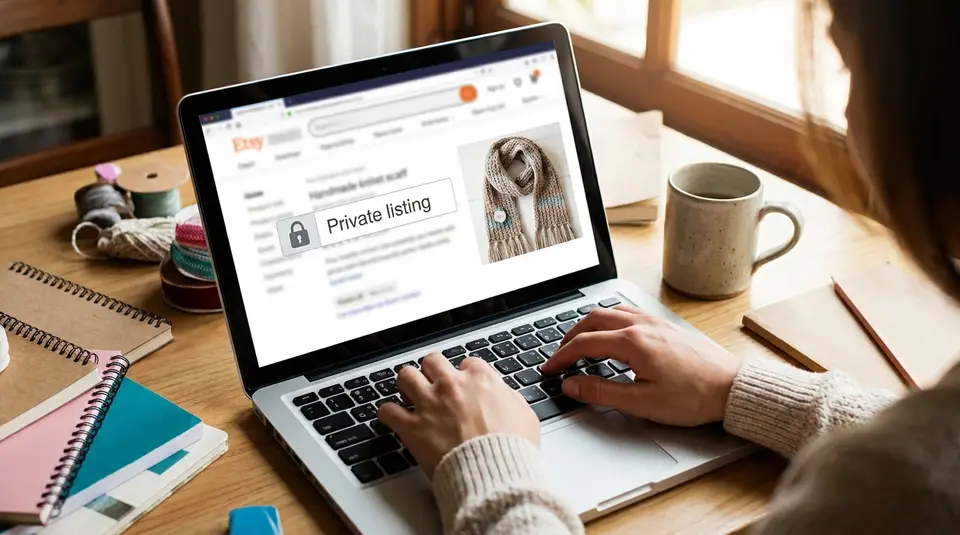
A private Etsy listing is Etsy’s built-in way to sell one custom item to one specific buyer without putting it in your shop or Etsy search. It’s ideal for custom orders where the price, materials, quantity, and processing time are unique, and it keeps the checkout and order record clean on both sides. The fastest setup is to enable Custom order requests in Shop Manager, then create the custom listing directly from your Etsy Messages thread so the buyer gets a purchase link and only they can check out. One detail that trips sellers up: private custom listings aren’t available for digital items, and a “reserved” public listing can still be bought by anyone.
Turning on custom order requests in Etsy Shop Manager
Where to enable custom requests
To create a truly private Etsy listing (one that is tied to a specific buyer), you’ll want Custom order requests turned on first. Etsy has this setting inside Shop Manager on the desktop site.
On Etsy.com, go to Shop Manager > Settings > Options. Look for Custom order requests, switch it to Enabled, then Save. Etsy notes this setting can only be enabled on Etsy.com (not in the app), and your shop needs to be open to the public for the option to appear. You can double-check the official steps in Etsy’s help doc on How to Offer Custom Items.
Settings that affect custom requests visibility
The biggest “visibility” factor is simply whether the feature is enabled. If it’s disabled, buyers won’t get the custom request option on your shop page.
Also keep in mind: enabling custom order requests doesn’t replace normal messaging. If a buyer can’t find the button for any reason, they can still contact you through Etsy Messages, and you can continue the custom order conversation there.
When a buyer starts a request, Etsy routes it through Messages. New requests may show in a dedicated Custom Requests area, while ongoing conversations stay in your regular inbox.
What buyers see when it’s enabled
Once enabled, Etsy adds a Request Custom Order button to your shop homepage. When a buyer clicks it, Etsy prompts them to send you a message describing what they want and (optionally) a “need by” date.
From the buyer’s perspective, it feels like a normal Etsy message, but it’s clearly framed as a custom order request, which makes it easier to turn that request into a private listing later.
Creating a private listing from an Etsy custom request
Accepting a request and drafting the listing
Once a buyer sends you a custom request, keep the conversation in Etsy Messages until you both agree on the exact specs. Get clear on what’s included, what’s not, and what “done” looks like. For example: size, materials, color, wording, add-ons, and whether you’ll send a proof.
When you’re ready to turn the conversation into a private Etsy listing, open the buyer’s message thread and use Etsy’s custom order flow (you’ll see an option like Create custom order). This is the key step that makes the listing private and tied to that buyer, instead of a “reserved” public listing anyone could still purchase. Etsy’s current custom order process is outlined in How to Offer Custom Items.
Setting price, quantity, and processing time
Price your custom listing the same way you would any order, but be explicit about what the buyer is paying for. If you offer tiers (basic vs premium), confirm the chosen tier in writing before you publish.
Set quantity based on how you intend to fulfill the order. If it’s one custom piece, keep quantity at 1. If it’s, say, 20 custom tags, set quantity to 20 so the receipt matches reality.
Choose a processing time you can reliably hit. Build in time for approvals and revisions. Etsy limits custom order processing times (so if your project is longer-term, you may need to split it into phases or handle it differently).
One important limitation: Etsy notes you can’t select a calculated shipping profile for custom orders, so plan to enter shipping details in a way that still covers your costs.
Publishing and sending the private link to the buyer
After you publish the private custom listing, Etsy sends the buyer a purchase link (and they can also access it from your message thread). Encourage them to check out only through Etsy, so you both get full order protection, an accurate receipt, and clean tracking in Shop Manager.
Before you hit send, quickly re-read the listing title, description, and any personalization notes. That listing becomes the “source of truth” if questions come up later.
Private listing visibility rules on Etsy (what others can and can’t see)
Where private listings do not show up
A private Etsy listing created from a custom request is designed to stay out of the public shopping flow. It won’t appear in your public shop and it won’t show up in Etsy search, so random shoppers can’t stumble across it and buy it.
That’s a big difference from making a normal listing and writing “reserved” in the title. A regular listing is still public, even if you tell people not to purchase it.
Who can view and purchase the listing
A private custom listing is meant to be only between you and the buyer who requested it. Etsy sends that buyer a purchase link, and the listing can be accessed from your message thread as well.
In practice, this means you can confidently build a one-off order (custom size, special materials, custom bundle, rush fee, etc.) without worrying that someone else will grab it first. Etsy confirms that other buyers won’t be able to purchase a private custom listing because it’s not displayed publicly. This is also why it’s so important to create the listing from the custom request or message thread, using Etsy’s custom order tool, as described in How to Offer Custom Items.
What happens after the item sells
Once the buyer purchases the private listing, it stops being “private” in the sense that it becomes part of your shop history. Etsy notes that the sold item will appear on your public Sold Items page with your other sold listings.
That’s normal, and it’s helpful for your shop credibility. If you need to keep sensitive details out of view, avoid putting personal info in the title or photos, and keep identifying specifics inside Etsy Messages instead.
Private custom listings vs regular listings and variations
When a private listing makes more sense
A private Etsy listing (made from a custom request) is the cleanest option when the order is truly one-off and built around one buyer’s exact needs. Use it when:
- The design is unique, or the buyer is combining options in a way you don’t normally offer.
- The price needs to be custom (rush fee, special materials, complex add-ons).
- You want the item to be available only to that buyer, not visible in your shop or Etsy search.
Etsy is very direct about this difference: custom listings created from requests are private and only purchasable by the requesting buyer. That’s why they’re the safest way to avoid someone else buying a “reserved” item. How to Offer Custom Items
When variations are the better choice
Variations are the better fit when you make the same product repeatedly and buyers just need to choose from a menu of options. Think sizes, colors, materials, or finishes.
Variations also help when you want Etsy to track inventory, price differences, or SKUs per option. Etsy allows up to two variation attributes per listing, which keeps the listing simple for shoppers and scalable for you. How to Add Variations for Your Listings
In general: if it’s something you expect to sell again, build it as a regular listing with variations. If it’s a one-time commission, go private.
Handling personalization without a private listing
If the item is basically standard, and the buyer only needs to enter details like a name, date, short message, or font choice, you often don’t need a private listing at all. Instead, use Etsy’s personalization option (when available for your shop) so the buyer enters the details right on the listing, and you see that info on the order.
Etsy’s guidance is to use personalization for buyer-entered text that doesn’t change your inventory, and use a custom listing when the item is one-of-a-kind and private to one buyer. How to Offer Personalized Listings as a Beta Participant
Messaging and order workflow for private listings
Best way to confirm details before publishing
Before you publish a private Etsy listing, aim to get a simple “yes” on the final plan in Messages. It prevents confusion and reduces rework later.
A quick checklist to confirm in writing:
- What the buyer is getting: size, materials, colors, finish, and any add-ons.
- What you need from them: exact spelling, dates, reference photos, and any do-not-do notes.
- Timeline: your processing time plus whether you’re sending a proof and how many revisions are included.
- Total price and shipping: include any rush fees or upgrades so the buyer isn’t surprised at checkout.
If the order is complex, summarize the final agreement in one message and ask the buyer to reply “Confirmed.”
Keeping everything in Etsy Messages for clarity
Keep the entire custom order conversation inside Etsy Messages whenever possible. It creates one clear paper trail tied to the order, including approvals, deadlines, and what was promised.
When you turn the request into a private listing, make the listing description match what you agreed to in Messages. That way, the order receipt and the message thread tell the same story. This helps if the buyer has questions later, or if you need to reference what was included.
Also, avoid sensitive personal details in the listing title or photos. Put those specifics in Messages instead.
What to do if the buyer needs changes
Changes happen. The key is to separate “pre-purchase” changes from “post-purchase” changes.
- Before purchase: revise the private listing details and resend the link (or ask them to use the updated one in the same thread). Make sure old pricing or old specs are not still floating around in screenshots.
- After purchase: keep the request in Messages and confirm whether it changes the price or timeline. If there’s an added cost, many sellers handle it with a separate custom listing for the additional fee, rather than trying to rewrite history on the original order.
If a change impacts your processing time, say so clearly and get a quick confirmation before you proceed.
Limitations, fees, and reporting for private Etsy listings
Listing types and features that don’t work with private listings
Private Etsy listings are created through Etsy’s custom order flow in Messages, and they come with a few practical limitations.
First, private custom listings can’t be created for digital items. If you sell custom digital work, you’ll typically handle it with a made-to-order digital listing and clear messaging about what the buyer will receive.
Second, calculated shipping can’t be used on private custom listings. You’ll need to set shipping in a way that makes sense for the order, usually with a fixed shipping cost that covers packaging, postage, and any upgrades.
Also note that private custom listings are for a single buyer. They’re not meant to be a “hidden product page” you reuse as a general sales channel.
Etsy fees that still apply to private listings
A private listing isn’t a fee workaround. The same core Etsy selling fees generally apply once the buyer checks out, including:
- Listing fee ($0.20 USD). Etsy’s fee policy notes that private listings are billed differently: the listing fee is charged when the private listing is sold, not when it’s created.
- Transaction fee (a percentage of the order total, including shipping if you charge for it).
- Payment processing fee (varies by the country where your bank account is located).
For the current fee definitions and the numbers Etsy publishes, use Etsy’s own Fees & Payments Policy.
Tracking private listing orders in Shop stats
Managing multiple similar requests without duplicating work
Private custom orders still count as normal orders for reporting. You’ll see the sale in your orders, revenue, and totals like any other checkout.
To stay efficient when you get “almost the same” custom request repeatedly, build a lightweight internal system:
Keep a reusable pricing formula (base price + add-ons + rush fee), save common replies in Etsy Messages, and use consistent naming in the listing title (for example: “Custom Name Necklace, Gold, Rush”) so you can find past orders quickly. When a request is truly repeatable, consider converting it into a regular listing with variations, and reserve private listings for the one-offs.
Related posts
Keep reading

How Much Money Can You Make Selling on Etsy?
Discover realistic Etsy income ranges, profit margins, fees, and proven tips to boost sales so you can grow your handmade or digital product shop confidently.

How to Break Even Faster on Etsy
Learn how to break even faster on Etsy with smart pricing, fee-cutting tactics, bestseller research, SEO-powered listings, and affordable Etsy Ads strategies.
Why Sell on Etsy? Key Benefits Explained
Discover why selling on Etsy boosts your handmade brand visibility, low startup costs, built-in traffic, loyal buyers, and flexible, low-risk income.

What Products Can You Sell on Etsy?
Discover exactly what you can sell on Etsy—from handmade crafts and digital downloads to vintage treasures and craft supplies—and start growing a joyful shop today.

How to Use Listing Videos to Increase Etsy Sales
Discover how to create high-converting Etsy listing videos that boost clicks, build buyer trust, showcase product details, and quickly increase your sales.

How to Write Etsy Policies That Prevent Problems
Craft clear, buyer-friendly Etsy shop policies on shipping, returns, cancellations and disputes to protect your business, boost trust and prevent costly problems.