
Etsy Notifications: How to Configure Alerts So You Don’t Miss Orders

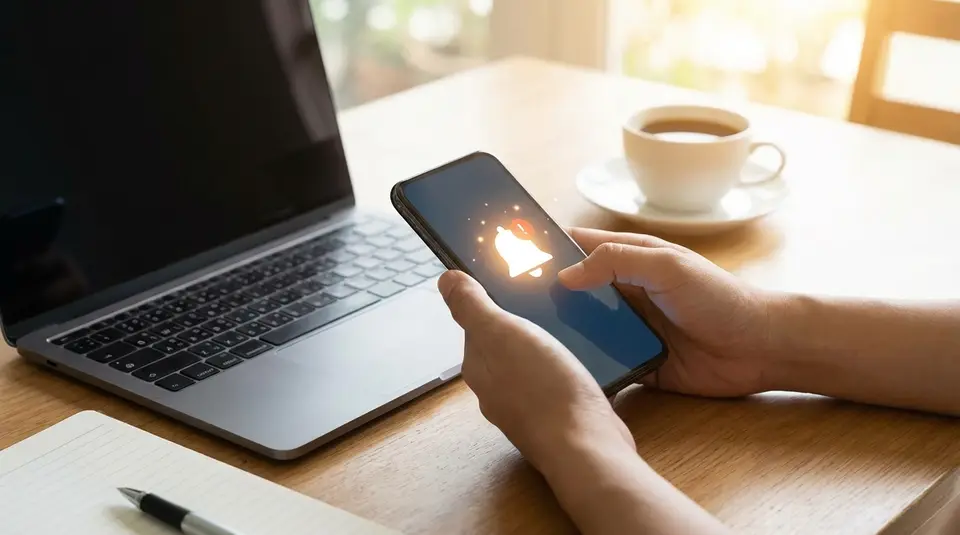
Etsy notifications are your early-warning system for new sales and buyer messages, and they only work when your app, email, and device settings all agree. Start by enabling order and message alerts in the Etsy Seller app, then confirm your Account Settings email preferences so transaction emails can actually reach you. On your phone, allow push notifications (and badges and sound, if you rely on them) and double-check Focus/Do Not Disturb rules that can quietly silence alerts. The most common “everything is on” problem is having Etsy toggles enabled while your phone blocks notifications or your inbox filters Etsy into spam.
What notifications you can get from Etsy as a seller
Order and payment activity alerts
Order and payment notifications are the ones that protect your revenue. These alerts typically tell you when you get a new order, when an order is paid, and when an order changes status, like a buyer request, a cancellation, or a refund-related update. Depending on what you sell and how you fulfill, you may also see prompts tied to order details, such as personalization notes, processing deadlines, or address problems that need your attention.
In practice, you want these alerts turned on in at least two places (push plus email, for example). If one channel fails, you still find out in time to start production or shipping.
Messages and buyer inquiries alerts
Message notifications cover anything that lands in Etsy Messages: new buyer questions, replies in an existing thread, and order-related conversations. Fast replies matter for both customer experience and seller performance, so this is one category you do not want to miss. Etsy’s messaging workflow for sellers runs through Shop Manager and the Etsy Seller app, and buyers are notified when you respond, too, which keeps conversations moving. Etsy Messages is also the safest place to keep communication for order documentation.
Shipping, reviews, and shop update alerts
Shipping and shop-health notifications are the “keep things on track” layer. Expect alerts related to shipping progress (like reminders to ship or add tracking), plus updates that affect your shop’s reputation, such as new reviews or cases.
Etsy also surfaces operational alerts in your dashboard, including policy or account-related notices. Some of these tie back to the same metrics Etsy uses in its Customer Service Standards, so it’s worth treating them as priority notifications, not background noise.
Where to change Etsy notification settings on desktop and app
Shop Manager notification settings
On desktop, your day-to-day seller alerts show up inside Shop Manager, along with a notification feed (the bell icon) for things like orders, messages, and shop activity. This is the best place to confirm what Etsy is generating on your account, even if your phone pushes are unreliable.
If you manage multiple shops or share access with a team, always double-check you’re viewing the correct shop in Shop Manager before changing anything. It’s easy to think “notifications are off” when you’re simply looking at a different shop profile.
Account email and privacy settings
Email alerts are controlled in your Etsy Account Settings, not in Shop Manager alone. That matters because you might have order emails turned on, but message emails turned off, or your subscription preferences set too quiet.
To review and adjust what Etsy emails you receive, use the Emails tab in Account Settings and save your changes when you’re done. Etsy notes that some emails are required and can’t be fully opted out of, but most notification categories can be customized in those settings. You can follow the step-by-step path in Etsy’s guide to change your Etsy email settings.
Etsy app notification menu
In the Etsy Seller app, notification controls are usually under a settings area inside the app menu (often labeled More or Settings), then Notifications. This is where you choose which events trigger push alerts, and in many cases, which ones also trigger email alerts.
One practical tip: after you change notification toggles in the app, send yourself a quick test by having a friend message your shop (or place a small test order if you have a second account and it’s allowed under your setup). It’s the fastest way to confirm the new settings actually “took.”
Configure order and payment alerts so you never miss sales
New order, payment, and cancellation alerts
Turn on alerts for new orders and payment confirmation first. These are the notifications that tell you it’s time to start work. In a busy shop, push notifications are great for speed, but email is your safety net, especially if your phone is on silent or you’re traveling.
Also enable alerts for order cancellations. Cancellations usually pair with a refund flow and can change what you should make or ship. Etsy’s cancellation process runs through Shop Manager, and it’s worth knowing that only the seller can cancel a sale once it’s placed. The steps and what happens to fees are explained in Etsy’s guide on How to Cancel a Sale.
Order issues: address, personalization, and processing reminders
Next, focus on notifications that prevent shipping mistakes:
- Address issues: anything that signals “do not ship yet” until the buyer confirms a correction.
- Personalization details: reminders to review buyer notes so you don’t miss a name, date, or custom text.
- Processing-time reminders: nudges that an order is approaching its ship-by window.
A helpful habit is to treat these as “stop and verify” alerts. If you get one, open the order on Orders & Shipping and confirm the details before you print a label or start production.
Refunds, chargebacks, and disputes alerts
Refund and dispute alerts protect your cash flow and your time. Keep notifications on for refunds and any payment-related disputes so you can respond quickly and document what happened in Etsy Messages.
Chargebacks are a special case. Etsy notes that for Etsy Payments transactions, they may contact the seller directly for information in some chargeback situations, and timelines can run weeks. That’s why it’s smart to have both push and email enabled for anything labeled chargeback or dispute. Details are covered in Etsy Help under Chargebacks on Etsy.
Set up buyer message notifications for fast replies
New message and conversation updates
Enable notifications for new messages and conversation updates so you see both the first inquiry and any follow-ups. Most missed messages happen in active threads, not brand-new ones. A buyer replies with a size, a deadline, or a photo, and the seller never sees it.
For reliability, use two channels:
- Push notifications in the Etsy Seller app for speed.
- Email notifications for backup and easy search later.
If you share shop duties, agree on one person who owns message replies. Otherwise two people might both assume the other answered, and the buyer gets silence.
Custom order requests and offers alerts
Custom work is where notification speed really matters. Turn on alerts for custom order requests and any offer-style messages so you can reply while the buyer is still shopping. Even if you don’t accept every request, a quick “Yes, I can” or “Here’s what I’d need from you” can save the sale.
To reduce back-and-forth, set a simple internal checklist for custom inquiries: required dimensions, color choice, personalization text, and the buyer’s need-by date. When you get an alert, ask for any missing items in your first response.
Auto-reply and away mode impact on notifications
Auto-replies and Away mode help you set expectations, but they can also create a false sense of security. An auto-reply does not replace a real response, and you can still receive messages while you’re away. Keep notifications on so you can spot high-priority issues, like a shipping address correction or a time-sensitive question.
If you plan to truly disconnect, set a clear Away message that states when you’ll respond and whether you can still accept rush requests. Then, when you return, scan message notifications first before jumping into fulfillment.
Choose the best delivery method: push, email, and in-app
Push notifications on your phone
Push notifications are the fastest way to catch a new Etsy order or message. They are ideal during production hours, while you’re sourcing materials, or any time you’re away from your computer. The trade-off is reliability. Push can fail if your phone blocks notifications for the Etsy Seller app, if Low Power mode limits background activity, or if Focus/Do Not Disturb is enabled.
For most sellers, the sweet spot is enabling push for high-priority events only, like new orders, new messages, and anything labeled payment issue or dispute. That keeps your phone useful without turning it into a constant noise machine.
Email notifications vs digest emails
Email is your paper trail. It’s slower than push, but it’s easier to search and reference later when you need to confirm dates, order totals, or what was said. If you’ve ever missed a push alert, email is the backup that saves you.
If Etsy offers digest-style emails in your settings, think of them as “nice to have,” not your primary channel. Digests are great for low urgency updates (shop activity, reminders, some marketing-style notices). They’re not ideal for time-sensitive events like a buyer asking for a same-day change.
A practical setup is: instant emails for orders and messages, digest emails for everything else.
In-app notification center basics
In-app notifications (the bell or notification feed) are the source of truth for what Etsy actually generated on your account. When you suspect you missed something, check the in-app notification center first, then open the related order or message thread.
Even if you rely on push and email, make it a habit to scan the in-app feed once or twice a day. It helps you catch the quiet stuff that still matters, like review activity, shipping reminders, or account notices.
Troubleshoot Etsy notifications not working or arriving late
App permissions and device notification settings
If Etsy notifications are enabled in the Etsy Seller app but you’re still missing alerts, the issue is often your device, not Etsy.
Work through this quick checklist:
- Phone settings: Make sure notifications are allowed for the Etsy Seller app, including Lock Screen, Notification Center, banners, and sounds (if you rely on sound).
- Focus/Do Not Disturb: Check Focus modes (iPhone) or Do Not Disturb modes (Android). These can silently block pushes.
- Battery and background limits: Low Power mode and battery optimization settings can delay notifications. Allow background activity for the Etsy Seller app if your phone offers that option.
- App sign-in and shop selection: Confirm you’re signed into the right Etsy account and viewing the correct shop, especially if you manage more than one.
After you change anything, send a simple test (a message to your shop) and confirm you get the push within a minute or two.
Email deliverability: spam, filters, and safe senders
When Etsy emails arrive late or not at all, it’s usually deliverability. Start with the basics:
- Check Spam/Junk and Promotions tabs.
- Search your inbox for “Etsy” and see if messages are being auto-archived or labeled.
- Review any rules/filters that move marketplace emails into folders you don’t check.
- Add Etsy to your email provider’s safe sender/allow list, then mark any missed Etsy email as “Not spam.”
Also confirm you didn’t accidentally turn off key categories in Etsy’s email preferences. It’s possible to receive marketing emails but miss transaction-related alerts if settings or filters are mismatched.
Browser and desktop notification issues
Desktop notifications can fail for a few common reasons:
- Your browser is blocking notifications for Etsy, or the permission was denied once and never re-enabled.
- Notifications are allowed, but your operating system’s notification settings are silencing the browser.
- You’re logged into the wrong Etsy account in your browser, so the alerts are going to a different session.
If you want desktop alerts, use one browser consistently for Etsy, allow notifications for Etsy in that browser, and avoid running multiple Etsy sessions across different profiles.
When to reinstall the app or re-enable permissions
Reinstalling is worth doing when you’ve confirmed the basics and things still don’t work, especially after a phone OS update or an Etsy Seller app update.
Try this sequence:
- Toggle Etsy Seller notifications off and back on in your phone settings.
- Force-close and reopen the Etsy Seller app, then sign out and sign back in.
- Update the app to the latest version.
- If pushes are still missing, uninstall and reinstall the app, then re-check notification permissions during setup.
If notifications suddenly start working after reinstalling, it’s a strong signal the app permissions or background settings were stuck, not that your Etsy account was “missing” alerts.
Quick verification steps to confirm key alerts are enabled
Confirm new order alerts in at least two channels
Set new order alerts to reach you in two places: push in the Etsy Seller app and email to an inbox you check daily. Then verify it actually works.
A simple check:
- Open Shop Manager and confirm you can see recent order activity in the notification feed.
- In the Etsy Seller app, confirm push notifications are enabled for new orders.
- In your email settings, confirm order emails are turned on and not going to an old address.
If you can, run a real-world test. Have a friend send a message to your shop, then place a small test order only if it fits your shop setup and policies. The goal is to confirm timing, not just toggles.
Confirm message alerts and sound or vibration settings
Message notifications fail most often because the phone receives them silently. Check both Etsy and your device:
- In the Etsy Seller app: message alerts enabled.
- On your phone: notifications allowed, with sound and/or vibration turned on if you depend on them.
- Check Focus/Do Not Disturb exceptions so Etsy Seller is allowed during work hours.
Also make sure conversation updates are enabled, not just “new message,” so you get follow-ups in existing threads.
Confirm shipping and issue alerts before you ship orders
Before you start a packing session, confirm you’ll be alerted to the problems that can force a do-over:
- Shipping reminders (ship-by timing)
- Address issues or buyer changes
- Payment issues that should pause fulfillment
- Dispute-related updates
A good routine is to open Orders & Shipping, scan for warnings, and only then print labels. If you catch an issue alert early, you save yourself the worst-case scenario: shipping the wrong item to the wrong address.
Related posts
Keep reading
How Much Money Can You Make Selling on Etsy?
Discover realistic Etsy income ranges, profit margins, fees, and proven tips to boost sales so you can grow your handmade or digital product shop confidently.

How to Break Even Faster on Etsy
Learn how to break even faster on Etsy with smart pricing, fee-cutting tactics, bestseller research, SEO-powered listings, and affordable Etsy Ads strategies.

Why Sell on Etsy? Key Benefits Explained
Discover why selling on Etsy boosts your handmade brand visibility, low startup costs, built-in traffic, loyal buyers, and flexible, low-risk income.

What Products Can You Sell on Etsy?
Discover exactly what you can sell on Etsy—from handmade crafts and digital downloads to vintage treasures and craft supplies—and start growing a joyful shop today.

How to Create a Production Workflow for Your Etsy Shop (SOP Template)
Production workflow for your Etsy shop with an SOP template: map order intake to making, QC, packing and shipping, with roles, tools, and ship-by timing.

How to Fix Etsy Publishing Errors in Shop Manager (Common Causes)
Etsy publishing errors in Shop Manager often trace to missing required fields, shipping profiles, or app glitches; use quick checks to publish smoothly.