
How to Keep Your Etsy Business Email Organized (Labels + Filters)

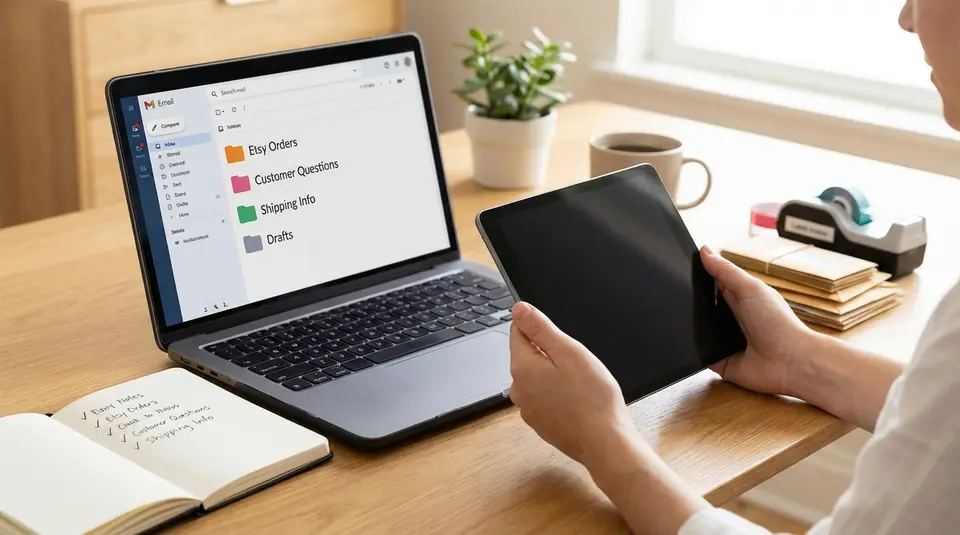
An organized Etsy business email keeps order notifications, customer questions, and vendor updates from blending into one stressful scroll. Set up a small label system that matches how you actually work, such as Orders, Shipping, Customer Messages, and Admin, then use filters to apply labels automatically based on sender and subject keywords. Keep your inbox for items that need action by letting low-priority receipts and platform alerts skip the inbox while time-sensitive notes stay visible and, if needed, get starred. The surprising win is how much faster you respond once you stop over-filtering and accidentally hiding the messages that matter most.
Etsy seller email categories that deserve their own labels
Orders and shipping updates
This is the label category that protects your fulfillment time. Any email that confirms a sale, flags an address issue, or includes a shipping status belongs here. In practice, it usually includes Etsy order confirmations, shipping notifications, and messages from whatever shipping method you use (Etsy Shipping Labels, a postage provider, or a carrier).
A clean approach is to split this into two labels: Orders: New (needs action) and Orders: Shipped (reference only). That way, your inbox stays focused on what still needs packing, printing, or a tracking number. If you ship internationally or handle lots of variations, you can also add Orders: Custom for personalization details so those threads do not get buried.
Returns, refunds, and cancellations
Returns and refunds are low volume for many sellers, but they are high stakes when they happen. Give them their own label so you can pull up the full history fast, including dates, prior messages, and any photos a buyer sent.
If you want this to feel even more organized, use a simple status pair: Resolution: Open and Resolution: Closed. It helps you avoid losing track of partial refunds, replacements, or orders that need a follow-up message after delivery.
Customer service and complaints
This label is for buyer questions that are not strictly about shipping status, such as product sizing, materials, care instructions, gift notes, or “can you do this by Friday?” requests. It is also where problem reports live, including “item arrived damaged” or “not as described.”
The key is to separate “needs reply” from “FYI.” A practical setup is Support: To reply and Support: Waiting. As soon as you respond, move the conversation to Waiting, then bring it back only if the buyer replies or you need to check on something. This keeps response-focused work visible without making your inbox look permanently unfinished.
Label naming conventions that stay readable as you grow
Prefixes that sort cleanly
The easiest way to keep Etsy labels readable is to name them so they sort into a few tight groups. Gmail sorts labels alphabetically, so a short prefix does a lot of work.
A simple pattern is Category: Detail, like:
- Orders: New, Orders: Shipped, Orders: Custom
- Support: To reply, Support: Waiting
- Resolution: Open, Resolution: Closed
- Admin: Bills, Admin: Taxes, Admin: Suppliers
The prefix keeps related labels together even as you add more. It also makes filtering faster because you can type “Orders” or “Support” and see the whole set.
Status labels like To reply and Waiting
Status labels prevent the most common inbox problem for Etsy sellers: messages that are important, but no longer actionable, still sit in your inbox forever.
Use just a couple of status labels across categories:
- To reply: anything that needs a response or decision from you.
- Waiting: you already replied, and you are waiting on the buyer, Etsy, or a carrier update.
If you want one extra status, add To do for tasks that are not a reply (for example, “update listing photos” after a buyer question reveals confusion). Keep it universal so you do not end up with five different versions of “pending.”
Color rules that stay consistent
Colors help only when they mean the same thing every time. Pick a small set and stick to it:
- One color for action now labels (like To reply, New).
- One color for in progress labels (like Waiting).
- One neutral color for reference labels (like Shipped, Closed).
Avoid assigning a new color for every Etsy label. When everything is bright, nothing stands out, and you are back to scanning instead of acting.
Gmail filters that auto-sort Etsy order and customer emails
Filters from Etsy subject lines and senders
Start with sender-based filters. They stay reliable even when Etsy changes wording in subject lines.
In Gmail, open the search bar dropdown and build filters like:
- Order and transaction notices: filter emails coming from
transaction@etsy.com, then apply your Orders: New label (and optionally skip the inbox if you already live in your labeled views). - Message notifications: filter emails from
conversations@mail.etsy.com, then apply your Support: To reply label so buyer conversations are always easy to find. - General Etsy notices and required account emails: filter
mail@etsy.comoretsy@mail.etsy.cominto a neutral Admin: Etsy label, so updates do not mix with buyer support.
If you are unsure which addresses Etsy uses for your account, Etsy lists common official sender addresses in their help article on email delivery issues, which is handy for double-checking before you build filters: I’m Not Receiving Emails from Etsy.
Filters for shipping tools and payment notifications
Next, catch the tools around Etsy, like shipping and payment paperwork.
Good “catch-all” filters often use a mix of:
- From: your postage provider, carrier notifications, or label service
- Subject includes: “label created,” “tracking,” “shipment,” “delivered,” “exception”
Route these into Orders: Shipped (reference) unless they require action. If you do get actionable delivery exceptions, send those to Resolution: Open so they do not get lost.
Filter testing with sample emails
Before you turn on “Skip the inbox,” test each filter on 2 to 3 real emails.
Use Gmail’s “Search” first (no filter yet), confirm it finds the right messages, then create the filter and choose “Also apply filter to matching conversations.” If anything looks off, adjust the sender or keyword until you are confident it will not hide buyer messages you need to answer.
Inbox workflow for replying fast without losing important messages
Star and snooze rules for urgent threads
Use stars for “this could cost me time or money today.” That usually means an address correction, a cancellation request before shipping, or a buyer who needs a fast answer to place an order.
A simple rule set that stays consistent:
- Star any thread with a same-day deadline (ship today, fix now, answer now).
- Snooze anything that is not actionable until a specific time, like “check tracking tomorrow” or “follow up in 3 business days if they do not respond.”
Snooze works best when you pick fixed check-in times. For example, snooze delivery issues to the next morning, and customization follow-ups to mid-afternoon, when you are already in order-prep mode.
Archive vs delete for order history
For an Etsy business inbox, archiving is almost always safer than deleting. Archived emails are still searchable, which matters when you need to confirm what was promised, when a label was purchased, or what a buyer said about personalization.
Delete is best reserved for true noise: obvious spam, duplicated marketing blasts, or auto-generated messages you will never need again. Everything tied to an order, a buyer conversation, a refund, or a shipping exception is usually worth keeping, even if it is labeled and out of your inbox.
One place to track pending replies
The fastest way to reply consistently is to maintain a single “waiting room” for open loops.
Pick one label as your source of truth, usually Support: To reply (and optionally Resolution: Open if you want to track problems separately). Then make a habit of:
- Read the email.
- Decide if it needs a response from you.
- If yes, apply To reply and leave it in the inbox until you respond.
- After you respond, move it to Waiting and archive it.
This keeps your inbox from becoming a mix of new, old, and already-handled Etsy threads. You always know where to look when you sit down to answer buyers.
Handling common buyer scenarios using saved replies and labels
Late delivery and tracking questions
Late delivery emails can explode your inbox because they are urgent, emotional, and repetitive. The fastest system is a two-step combo: a Gmail label for the thread, plus a saved reply you can personalize in seconds.
Label the email Resolution: Open as soon as you see “Where is my order?” Then reply with a template that covers the basics: the carrier, the tracking link or number, the latest scan, and what you will do next (for example, check again in 24 to 48 hours, or file a carrier inquiry if it has not moved). In Etsy Messages, this is where Quick replies (Etsy’s saved replies) shine, because you can store a “Tracking update” response and drop it into the conversation without retyping. How to Send Messages to Buyers explains how to create and use quick replies.
Once you have replied, move the email to Support: Waiting so your inbox only shows items you still need to act on.
Custom orders and personalization follow-ups
Custom orders create a lot of back-and-forth. Your goal is to keep every thread “clean”: one place for the buyer’s choices, one place for your confirmation, and one clear next step.
Apply Orders: Custom to any message that includes sizing, names, dates, or design notes. Use a saved reply that asks for missing details in a checklist format (name spelling, color, deadline, and any photo uploads). When the buyer answers, reply with a short “confirmation summary” template and restate the production timeline.
Problem reports and Etsy case messages
Treat problem reports like a mini ticket system. The moment you see damage, wrong item, or missing package, label it Resolution: Open and star it if it could impact today’s shipping or requires a quick decision.
Use one saved reply for the first response: acknowledge the issue, ask for the exact info you need (photos, packaging, order number, preferred fix), and set expectations for when you will respond next. When the issue is fully resolved, relabel it Resolution: Closed and archive it for your records.
Keeping Pattern and marketing emails separate from buyer support
Filters for newsletters and promotions
Marketing emails are useful, but they should not live in the same flow as buyer support. Create one label like Marketing: Newsletters and filter anything that is clearly promotional into it.
In Gmail, filters that work well here are:
- List-Unsubscribe based mail (many newsletters include it).
- Common subject words like “newsletter,” “campaign,” “sale,” “new product,” or “tips.”
- Known senders you trust, like email tools, ad platforms, or your own store newsletter address.
If you sometimes need to reference a promo you sent, keep these messages archived under the label rather than deleting them.
Foldering integrations like Mailchimp notifications
Integrations often generate “FYI” alerts: campaign approvals, audience imports, automation status, or weekly summaries. These can be valuable, but they are rarely urgent.
Give integrations their own label group, such as Integrations: Mailchimp (and add others if you use them). Filter by the integration’s sender domain and apply the label automatically. Consider skipping the inbox so these updates never compete with buyer questions.
Protecting your main support inbox from noise
Your support inbox should be a short list of threads that need action. Two guardrails help a lot:
- Never let promotional mail hit your “To reply” label. If a filter could catch both buyers and promos, tighten it.
- Keep Etsy buyer conversations separate from Etsy updates. Route buyer message notifications into Support: To reply, and route general Etsy platform emails into an Admin: Etsy label.
The goal is simple: when you open email, you see buyers and order issues first. Everything else can wait without getting lost.
Related posts
Keep reading

Etsy Featured Listings: How to Curate Your Shop Homepage
Etsy featured listings help spotlight bestsellers on your Shop Home; pick 4 (or sections), order them for cohesive photos, and rotate a queued set for seasons.

Selling Jewelry on Etsy: Metal Disclosure and Allergy Considerations
Selling jewelry on Etsy: List exact metals, flag nickel sensitivity, and support hypoallergenic wording with supplier docs or testing to reduce buyer issues.

How to Use Etsy “Materials” and “Occasion” Fields Strategically
Etsy Materials and Occasion fields can boost visibility when chosen for buyer filters; match category, avoid guesswork, and align tags with real intent.

Etsy SEO Tips to Rank Higher in Search
Happy Etsy SEO tips for sellers: master keywords, titles, tags, photos, reviews, free shipping, and conversions to rank higher in Etsy search and boost sales.

Etsy About Page Checklist: The 9 Elements That Build Trust
Etsy About section essentials: add your story, process photos or video, team details, links, and clear policies so shoppers feel confident buying from you.

Etsy Notifications: How to Configure Alerts So You Don’t Miss Orders
Etsy notifications setup for sellers: choose order, message, and shipping alerts in the Seller app and email settings, plus quick fixes when pushes fail.