
How to Write Etsy Image Alt Text for Accessibility and SEO

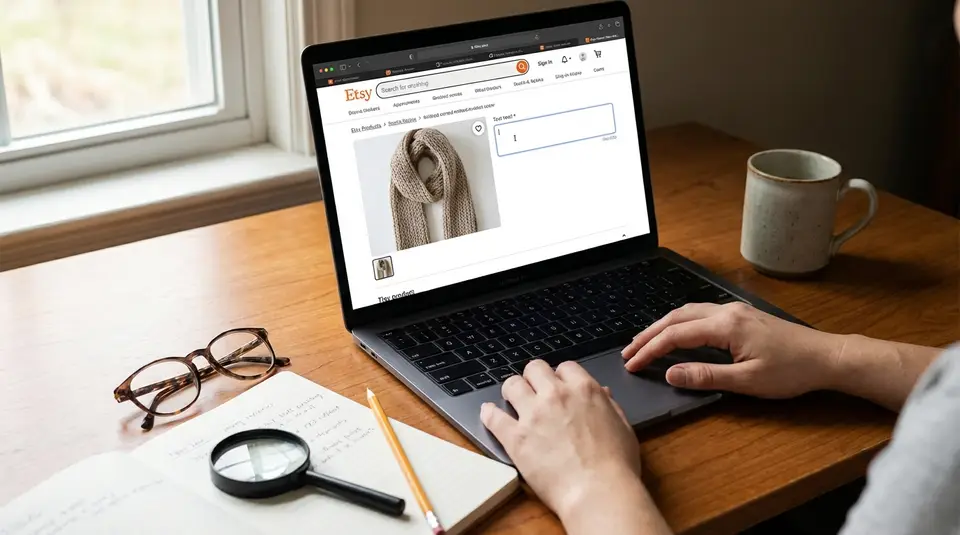
Etsy image alt text is the short description attached to each listing photo that screen readers and search engines use when they can’t see the image. Done well, it helps blind and low-vision shoppers understand exactly what you’re selling, and it can also make your photos easier for search engines outside Etsy to interpret. Aim for plain, specific product language: name the item, call out the details that matter (color, material, size or scale), and describe what’s unique about that particular photo, like a close-up, variation, or how it’s worn or used. Many sellers accidentally paste titles or stuff keywords, but the real win is describing what a person would miss at a glance.
Why Etsy image alt text matters for accessibility and search
Screen readers and non-loading images
Alt text is a short description attached to each Etsy listing image. It’s there for buyers who can’t see the photo, including people using screen readers. It also helps when images fail to load due to a slow connection or blocked images, since the description still communicates what the photo was meant to show.
On Etsy, adding your own alt text is especially important because Etsy may generate alt text automatically if you don’t provide it. That auto text can be helpful, but it can also miss key details sellers care about, like the exact material, the true color, or whether a photo shows a size comparison or a packaging shot. Writing your own keeps the description accurate, consistent, and buyer-friendly. Etsy’s own guidance also encourages concise, detailed descriptions (up to 250 characters), focused on what’s in the image, not marketing copy. You can review the official rules and limits in Etsy’s help article on text alternatives for listing images.
Where alt text can show up in discovery
Alt text is primarily an accessibility feature, but it also helps search engines outside Etsy understand your images. That matters because many shoppers discover products through Google Image results, shopping results, and other visual discovery surfaces.
The key is accuracy. If your alt text matches what the photo actually shows (main image, close-up detail, lifestyle shot, variation), you give search engines clearer signals and give shoppers fewer surprises. Think of it as labeling each photo with the most useful, literal description of that specific view.
Adding and editing alt text on Etsy listing images
Where to find the alt text field
On Etsy.com, you add alt text from the listing editor inside Shop Manager:
- Sign in and go to Shop Manager.
- Select Listings.
- Open the listing you want to edit.
- Click the specific photo you want to describe.
- Find the Alt text section and type a clear description of what’s in that image (Etsy allows up to 250 characters).
- Select Apply to attach the alt text to that photo. (Etsy’s help guide walks through the same steps.)
In the Etsy Seller app, the path is slightly different. You’ll open the listing, tap the pencil in the Photo and video area, then use the Alt text icon to choose an image and save your description.
Saving changes and common issues
A few practical things trip sellers up:
- Alt text saves per image, not per listing. You need to click each photo and add its own description.
- “Apply” matters. If you type your alt text but don’t hit Apply (web) or Save (app), it may not stick.
- Edits are easiest in batches. If you’re updating many listings, set a simple standard (main photo, detail photo, scale photo, packaging photo) so you don’t rewrite from scratch every time.
If you cannot find the field, double-check that you’re editing the listing itself (not just rearranging photos), and try refreshing or switching devices.
Handling Etsy auto-generated alt text
If you don’t add alt text yourself, Etsy may automatically generate it for U.S. sellers’ listing images. The good news is you can edit Etsy’s auto-generated alt text at any time, and Etsy won’t overwrite images that already have alt text. So if accuracy matters (it usually does), add your own descriptions for the photos buyers rely on most, starting with your main image and any key detail shots.
Writing strong alt text that describes the product clearly
Include color, material, size, and key features
Good Etsy alt text answers one simple question: “If someone couldn’t see this photo, what would they need to know?”
Start with the product name, then add the details that change a buyer’s understanding:
- Color and finish: matte black, glossy white, brushed silver, walnut stain.
- Material: sterling silver, solid oak, linen, acrylic yarn, ceramic.
- Size or scale: include inches/mm when it matters, or note a scale cue like “in hand,” “on a model,” or “next to a ruler.”
- Key features shown in that specific image: clasp type, texture, personalization, backside, frame style, pattern pieces, zipper pocket.
If the photo is a close-up, say so. If it shows the item being worn or used, describe the context.
Keep descriptions specific, not salesy
Alt text is not a second title. Keep it factual and helpful. Skip marketing phrases like “perfect gift,” “best quality,” or “must-have.” Instead, describe the photo’s content in plain language.
Examples of the right tone:
- “Gold-filled hoop earrings with hammered texture, worn on ear.”
- “Framed watercolor landscape print on white wall above a sofa.”
This “what you see is what you write” approach helps shoppers trust the listing.
Avoid keyword stuffing and repetition
One or two natural keywords are fine if they truly describe the image, but avoid cramming in every search term. Repeating the same phrase across all photos also wastes space.
A simple rule: each image should add new information. Your main photo might cover the overall product. Detail shots can cover texture, hardware, stitching, or personalization. Lifestyle photos can cover scale and use.
Which Etsy images should get alt text and what to mention
Main image vs detail shots vs lifestyle photos
Think of Etsy alt text as a guided tour through your listing photos. If you only have time to write a few, prioritize the images that do the most selling and the most clarifying.
For your main image, describe the item clearly and completely in one line. Name the product and the most important identifiers a shopper would use to confirm they’re in the right place, like color, material, and what type of item it is.
For detail shots, focus on what the zoom is trying to prove. Call out texture, workmanship, closures, backing, seams, edges, print quality, or personalization details. If the image shows a maker’s mark, a clasp type, or a fabric weave, say that.
For lifestyle photos, describe the setting only as needed to explain scale and use. Mention how the product is worn, displayed, or used, plus any key context like “on model” or “on desk.” Avoid describing unrelated props unless they could confuse the buyer.
Variations, scale, and packaging photos
Variation images are where clear alt text reduces wrong orders. If a photo shows a specific option, label it directly, like “Sage green linen napkin, set of 2,” or “14k gold finish, 18-inch chain.”
For scale photos, be explicit. Buyers love these, and screen reader users rely on your wording. Mention the size reference shown, such as “ring on finger,” “mug next to a soda can,” or “art print held in two hands.” If a ruler or measuring tape is visible, say so.
For packaging photos, describe what arrives and how it’s presented. This is especially helpful for gift buyers. Mention “gift box,” “cotton pouch,” “care card,” or “shipping box,” but keep it truthful to what the buyer will actually receive.
Bundles and multi-item listings
Bundle listings need alt text that prevents misunderstandings. Use the photo to clarify quantity and included pieces, like “Set includes 3 soy wax candles in amber jars,” or “Bundle of 5 printable wall art files, shown as a gallery wall mockup.”
If one image shows everything together and another shows items individually, make the difference obvious in the descriptions. That simple split cuts down on “I thought it came with…” messages later.
SEO-friendly wording for Etsy alt text without losing clarity
Use natural phrasing buyers would recognize
If you want Etsy alt text that supports SEO, write it the same way a real buyer would describe the photo to a friend. Start with the product type, then add the identifying details. Keep it readable as a sentence or clean phrase.
Good patterns that tend to work well:
- “Sterling silver birthstone necklace with round pendant, on chain.”
- “Personalized leather dog collar in brown, engraved nameplate.”
This kind of natural phrasing includes real search language without feeling forced. It also reads well in a screen reader, which is the primary goal.
Match the listing image content, not the title
A common mistake is pasting your Etsy title into every image. Titles are built for search and often include repeated keywords, abbreviations, and extra phrases that do not describe the photo.
Instead, describe what’s unique about that specific image:
- If it’s a close-up, say “close-up of stitching” or “macro view of hammered texture.”
- If it shows a variation, name the variation shown.
- If it’s a lifestyle shot, describe how the item is used or worn.
Alt text should never claim something the image does not show. If the photo is only the front view, don’t describe the back or packaging.
Consistency with tags, titles, and attributes
You do not need to mirror Etsy tags in alt text, but it helps when your wording is consistent with your listing basics. Use the same core terms for the product type and material across your title, attributes, and images. For example, pick “hoop earrings” vs “circle earrings,” then stay consistent unless the photo truly shows a different style.
Think of it as alignment, not duplication. Tags can stay keyword-focused. Alt text stays image-focused. When both are accurate, shoppers (and search engines) get a clearer picture of what you sell.
Alt text examples for common Etsy product categories
Jewelry and accessories
- “Sterling silver stud earrings with turquoise cabochon, front view on white background.”
- “Gold-filled hoop earrings with hammered texture, worn on ear.”
- “Personalized bar necklace in rose gold, engraved name, on 18-inch chain.”
- “Brown leather wallet with snap closure, open view showing card slots.”
- “Handwoven cotton tote bag in navy and cream stripes, shown on shoulder.”
Tip for jewelry: include the metal, finish, and what the photo is showing (front view, side profile, clasp close-up, worn photo).
Home decor and art prints
- “Framed botanical art print, black frame, hanging on white wall above desk.”
- “Set of 3 minimalist line art prints, shown as a gallery wall mockup.”
- “Hand-thrown ceramic mug in speckled glaze, side view with handle.”
- “Macramé wall hanging in natural cotton, close-up of knot pattern.”
- “Soy wax candle in amber glass jar with cotton wick, labeled lid beside jar.”
Tip for home decor: call out scale cues when present, like “above sofa,” “on nightstand,” or “held in hand.”
Clothing, patterns, and digital files
- “Linen wrap dress in sage green, worn by model, waist tie visible.”
- “Unisex graphic t-shirt in black, front view laid flat.”
- “Knitted beanie in charcoal wool blend, close-up of ribbed brim.”
- “PDF sewing pattern cover image for tote bag, includes size chart and notions list.”
- “Printable weekly planner PDF, preview pages shown on tablet screen.”
Tip for digital items: describe what the preview image shows (pages, layouts, file type if shown), but avoid implying physical shipment if it’s a download.
Related posts
Keep reading

Etsy Featured Listings: How to Curate Your Shop Homepage
Etsy featured listings help spotlight bestsellers on your Shop Home; pick 4 (or sections), order them for cohesive photos, and rotate a queued set for seasons.

Selling Jewelry on Etsy: Metal Disclosure and Allergy Considerations
Selling jewelry on Etsy: List exact metals, flag nickel sensitivity, and support hypoallergenic wording with supplier docs or testing to reduce buyer issues.

How to Use Etsy “Materials” and “Occasion” Fields Strategically
Etsy Materials and Occasion fields can boost visibility when chosen for buyer filters; match category, avoid guesswork, and align tags with real intent.

Etsy SEO Tips to Rank Higher in Search
Happy Etsy SEO tips for sellers: master keywords, titles, tags, photos, reviews, free shipping, and conversions to rank higher in Etsy search and boost sales.
Textile Labeling Basics: Fiber Content and Country of Origin (Seller Guide)
Textile labeling basics for sellers: fiber percentages, approved generic names, RN/identity, and country of origin placement to meet FTC rules without guesswork.

How to Create On-Brand Etsy Listing Graphics (Without Overdesigning)
Etsy listing graphics that stay on-brand: clean text hierarchy, consistent colors and fonts, plus fast Canva templates for mobile-ready, uncluttered thumbnails.