
Etsy Account Security: How to Enable Two-Factor Authentication

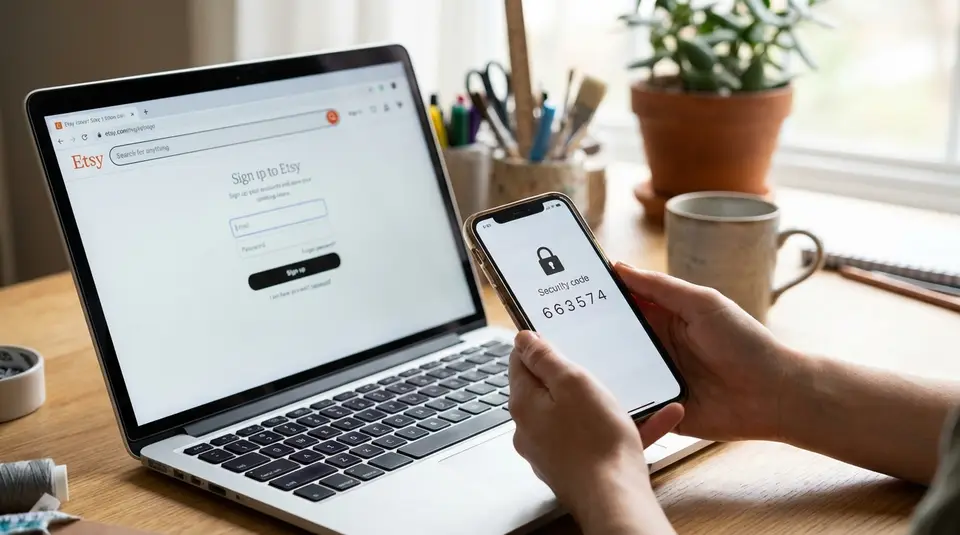
Two-factor authentication adds a second sign-in check to your Etsy login, so a stolen password alone is not enough to get into your account. In Etsy, it’s turned on from Account settings under the Security section, where you choose how you want to receive a one-time code, typically via an authenticator app or by phone call or SMS. A smart setup includes saving your backup codes immediately and making sure the phone number on file is current before you sign out. The surprising problem that locks many people out isn’t the code itself, it’s what happens when the device or number you relied on suddenly changes.
Etsy two-step verification options: SMS, call, or authenticator app
SMS and phone call codes
Etsy lets you receive a temporary verification code by text message (SMS) or an automated phone call. This is the simplest option because it works with a basic mobile number, no extra app required. When you sign in on a new device or browser, Etsy will ask for your password and then a one-time code. Etsy may also prompt you again periodically (for example, every 30 days).
SMS and call verification is convenient, but it depends on having access to that phone number at the exact moment you need it. If you travel, change carriers, lose service, or switch numbers, you can get stuck. Also, phone-based verification can be more vulnerable to account takeover methods like SIM swap fraud than app-based codes. For Etsy’s current options and setup flow, see Etsy’s guide to 2 factor authentication.
Authenticator app codes
An authenticator app generates time-based codes on your phone (or tablet). You scan a QR code during setup, and after that the app creates fresh codes even if you do not have cellular service.
This method is usually the best balance of security and reliability for sellers, especially if you travel or have inconsistent reception. It also avoids delays from texts arriving late.
Choosing the best method for your account
If you run an Etsy shop, think in terms of “what’s easiest to keep stable for the next year.”
- Choose authenticator app if you want stronger security and fewer issues when reception is weak.
- Choose SMS or call if you need the simplest setup and your phone number is very stable.
Whichever method you pick, save your backup codes right away. They are your safety net if your phone or app is unavailable.
Turning on two-factor authentication in Etsy account settings (web)
Finding Security settings
On a desktop or mobile browser, sign in to Etsy.com and open your Account settings from your profile icon. From there, go to Security. This is the control center for Etsy account security, including two-factor authentication (2FA).
Under the 2 factor authentication section, choose Turn on 2FA. Etsy will then ask you to pick the verification method you want to use: SMS, Phone, or an Authenticator App. Etsy also notes that 2FA is required when you open a new shop, and that you may be asked for a code when you sign in on a new device or browser and about every 30 days.
Confirming your phone or authenticator app
After you choose your method, select Continue and follow the on-screen prompts:
- SMS or Phone call: Enter your phone number (with country code), then type in the code you receive by text or call to confirm it.
- Authenticator app: Etsy will display a QR code. In your authenticator app, add a new account and scan the QR code. Then enter the time-based code shown in the app to confirm.
Once verification is complete, Etsy will show you backup codes. Save them immediately (download or copy) and store them somewhere secure. Etsy’s own steps for enabling 2FA and saving backup codes are in its guide to 2 factor authentication.
Enabling two-factor authentication in the Etsy app and Etsy Seller app
Turning on 2FA on iPhone and Android
If you manage a shop from your phone, the Etsy Seller app includes a built-in path to enable two-factor authentication.
- Open the Etsy Seller app.
- Tap the More tab.
- Under Account & app settings, select 2 Factor authentication.
- Choose your method: SMS, Phone, or Authenticator App.
- Tap Continue, then follow the prompts to confirm your setup.
- Save your backup codes when Etsy displays them, then finish setup.
On iPhone and Android, the screens can look slightly different by version, but the labels above are the ones Etsy uses in its current instructions. If you do not see a 2FA option inside the app you are using, you can always turn it on from a web browser in your Etsy account Security settings. Etsy keeps its official steps updated here: 2 factor authentication.
Switching between devices after setup
Switching phones is where many Etsy 2FA setups break, so plan for it before you upgrade.
If you use SMS or phone call codes, your access follows your phone number. Confirm you can still receive calls or texts on that number before you sign out on your old device.
If you use an authenticator app, codes usually live on the device that scanned the QR code. Before you wipe or trade in your old phone, make sure you can move your authenticator accounts to the new device, or be ready to sign in with an Etsy backup code and re-set up 2FA in Security settings.
Saving and using Etsy backup codes for account access
Where to find backup codes
Etsy gives you backup codes right after you finish turning on two-factor authentication. You’ll see a screen with options like Save to your device or Copy codes, and that’s the moment to store them somewhere safe.
A few details matter:
- Etsy backup codes are 9-digit codes.
- They’re shown only once, during setup.
- Each code works one time. Once used, it’s no longer valid.
- Etsy Support will not ask you for these codes, so treat them like a password and keep them private.
When you’re signing in and Etsy asks for a security code, you can type a backup code into the Security Code field instead of using the SMS, call, or authenticator app code.
What to do if backup codes are lost
If you lost your backup codes but you can still receive 2FA codes (by SMS, call, or your authenticator app), sign in and create a fresh safety net right away. The simplest practical approach is to turn 2FA off and then turn it back on, which prompts Etsy to issue a new set of backup codes during setup.
If you’re locked out and don’t have your phone or a working backup code, use Etsy’s sign-in help flow and select the option that indicates you still need help.
Managing 2FA after setup: trusted devices, changes, and resets
Updating your phone number or authenticator app
Most 2FA headaches happen during a phone change.
If you use SMS or phone call codes, Etsy ties 2FA to the number you verified. To switch to a new number, Etsy’s recommended approach is to turn 2FA off, then turn it back on and verify the new number during setup. If you cannot access your old number, you may be able to use a backup code to complete the change. Etsy outlines the exact steps in How to Update the Phone Number in Your Etsy Account.
If you use an authenticator app, plan ahead before you replace or wipe your device. Many authenticator apps require a transfer or re-enrollment process. If you no longer have the old device, you’ll typically sign in with a backup code (or your existing method if still available), then re-set 2FA so the new device can scan a fresh QR code.
Turning 2FA off and back on
Turning 2FA off is sometimes necessary, especially when you need to reset your method or replace a phone number. On Etsy.com, you’ll do this from Account settings > Security, then Edit in the 2FA section and choose Turn 2FA off. Etsy will send a confirmation code to verify it’s really you.
After you turn 2FA back on, treat it like a fresh setup: confirm your preferred method, then save the new backup codes immediately. If you sign in often from the same browser or device, Etsy may not challenge you every time, but you should still keep your 2FA method and backup codes current in case you’re prompted unexpectedly.
SMS and call verification availability by country on Etsy
What to do if your country is unsupported
Etsy’s SMS and phone call codes are not available everywhere. Etsy maintains a country list for where call or text verification should work. If your country is not on that list, Etsy generally expects you to use an authenticator app instead of a phone number for two-factor authentication. You can check the current list inside Etsy’s 2 factor authentication help page.
If your country is unsupported (or if SMS/call works unreliably), the most practical fixes are:
- Switch to an authenticator app method. This avoids carrier restrictions and usually works anywhere, even when you’re traveling, as long as you still have the device that holds the authenticator.
- Save backup codes before you travel or change phones. Backup codes are your fallback if you can’t receive a code and can’t access your authenticator.
- Double-check your phone format and country code. If your country is supported but codes still do not arrive, make sure the number is entered correctly and can receive standard SMS or calls (not blocked by spam filters or carrier settings).
For sellers, the goal is consistent access. If your shop depends on daily messaging, listings, or order management, an authenticator app plus securely stored backup codes is usually the least stressful setup.
How do I fix problems setting up or signing in with Etsy 2FA?
Not receiving a code or code not working
If you use SMS or phone call codes and nothing arrives, start with the basics:
- Double-check the phone number format (country code, no extra digits). A small typo can send codes nowhere.
- Wait for the next code and try again. One-time codes expire quickly, and a “late” text can be invalid by the time you enter it.
- Try the other phone option if Etsy offers it (switch from SMS to call, or call to SMS).
- Check signal and filters. Poor reception, Do Not Disturb, call blocking, and spam filters can block automated messages.
- Avoid rapid re-tries. Requesting multiple codes back-to-back often creates confusion about which one is current.
If you still can’t get a phone code reliably, switching to an authenticator app is usually more stable, especially when traveling or when your carrier is inconsistent.
Time sync issues with authenticator apps
If your authenticator app code is being rejected even though you’re typing it correctly, your phone’s clock is often the culprit. Authenticator codes are time-based, so even a small time drift can break verification.
Fixes that usually help:
- On iPhone: go to Settings > General > Date & Time and turn Set Automatically on.
- On Android: enable Automatic date & time (network-provided time).
- If you use Google Authenticator on Android, use its Time correction for codes option (Sync now) if available.
- Generate a fresh code and enter it right away, before it rolls over.
Locked out and no backup codes left
If you can’t access your phone or authenticator app and you don’t have any working backup codes, use Etsy’s account recovery flow. On the “I can’t sign in” help page, choose the option that says you still need help so you can contact support for next steps through Etsy’s process: I Can't Sign In to My Account.
Related posts
Keep reading
How Much Money Can You Make Selling on Etsy?
Discover realistic Etsy income ranges, profit margins, fees, and proven tips to boost sales so you can grow your handmade or digital product shop confidently.

How to Break Even Faster on Etsy
Learn how to break even faster on Etsy with smart pricing, fee-cutting tactics, bestseller research, SEO-powered listings, and affordable Etsy Ads strategies.
Why Sell on Etsy? Key Benefits Explained
Discover why selling on Etsy boosts your handmade brand visibility, low startup costs, built-in traffic, loyal buyers, and flexible, low-risk income.

What Products Can You Sell on Etsy?
Discover exactly what you can sell on Etsy—from handmade crafts and digital downloads to vintage treasures and craft supplies—and start growing a joyful shop today.
Should You Require Signature Confirmation for Etsy Orders?
Learn when to require signature confirmation for Etsy orders to prevent package theft, protect high-value shipments, keep tracking valid, and boost buyer trust.
How to Add Credentials and Experience to Etsy Listings (Without Overclaiming)
Etsy listing descriptions that signal expertise: add certifications, process details, and honest experience notes while avoiding risky medical or legal claims.